
Managing Partners
The Partners page provides a comprehensive view of all your business partners with powerful search and filtering capabilities.
Accessing Partners
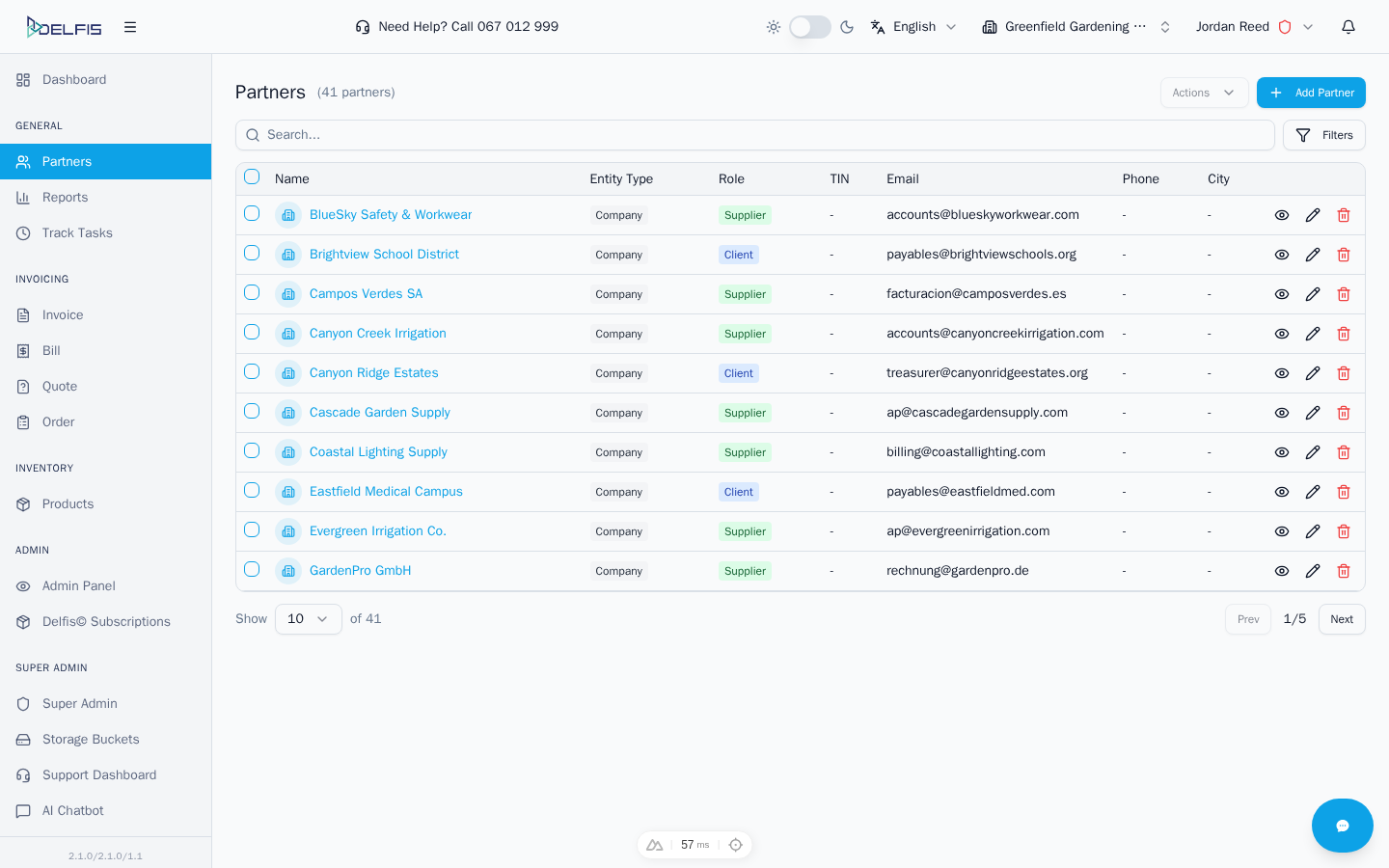
Navigate to Partners from the sidebar menu to view your partner list.
Partners Table
The partner table displays key information at a glance:
| Column | Description |
|---|---|
| Checkbox | Select partners for bulk actions |
| Name | Partner name with type icon (company/person) |
| Entity Type | Company or Person badge |
| Role | Client, Supplier, or Both (color-coded) |
| TIN | Tax Identification Number |
| Contact email address | |
| Phone | Primary phone number |
| City | Partner's city |
| Actions | View, Edit, Delete buttons |
Role Badges
Partners are color-coded by role:
- Blue - Client only
- Green - Supplier only
- Purple - Both client and supplier
Search
Use the search bar to quickly find partners. The search looks through:
- Partner name
- Email address
- Tax ID (TIN/PIB)
- City
- Country
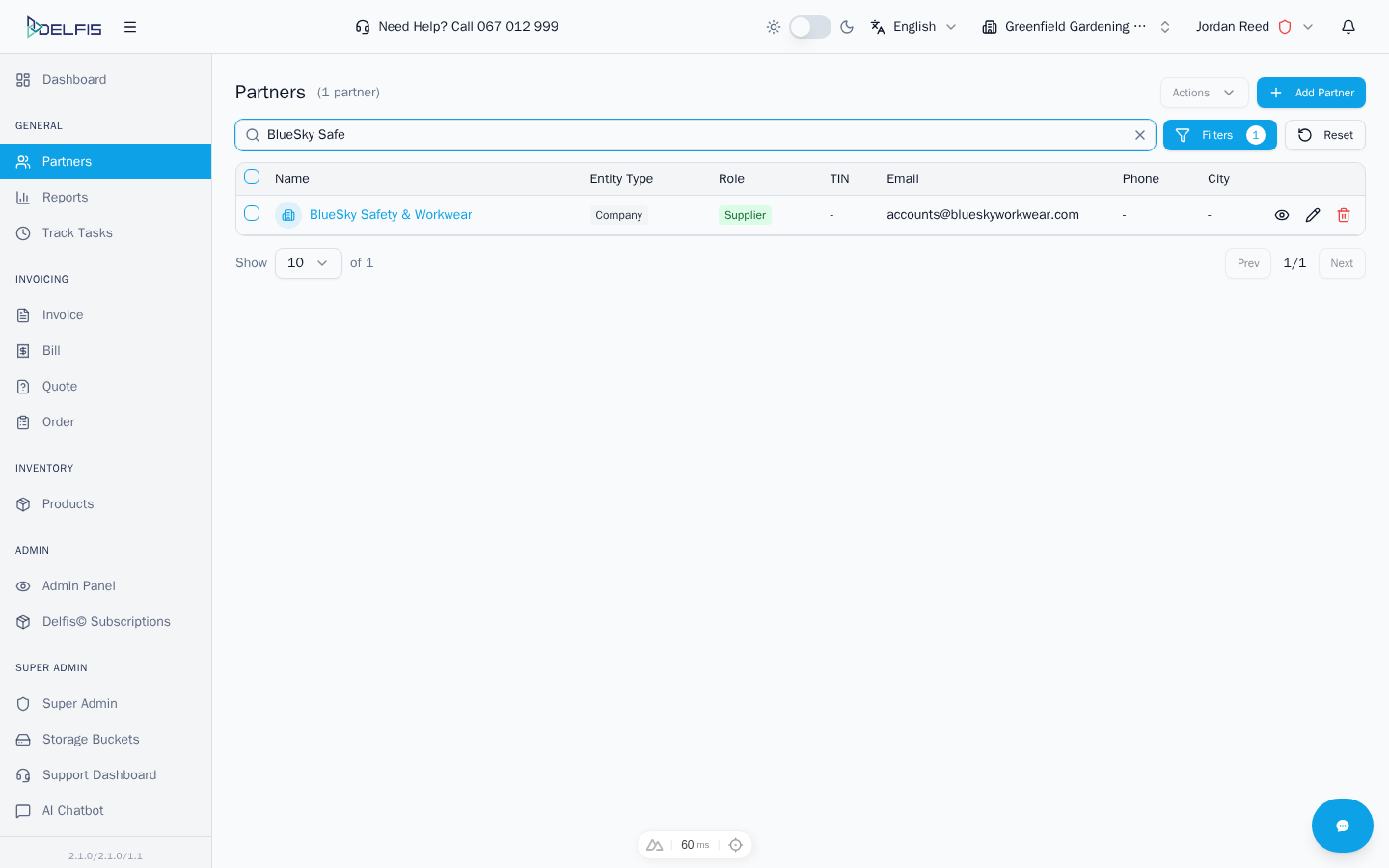
Simply start typing and results filter in real-time. Click the X button to clear your search.
Filters
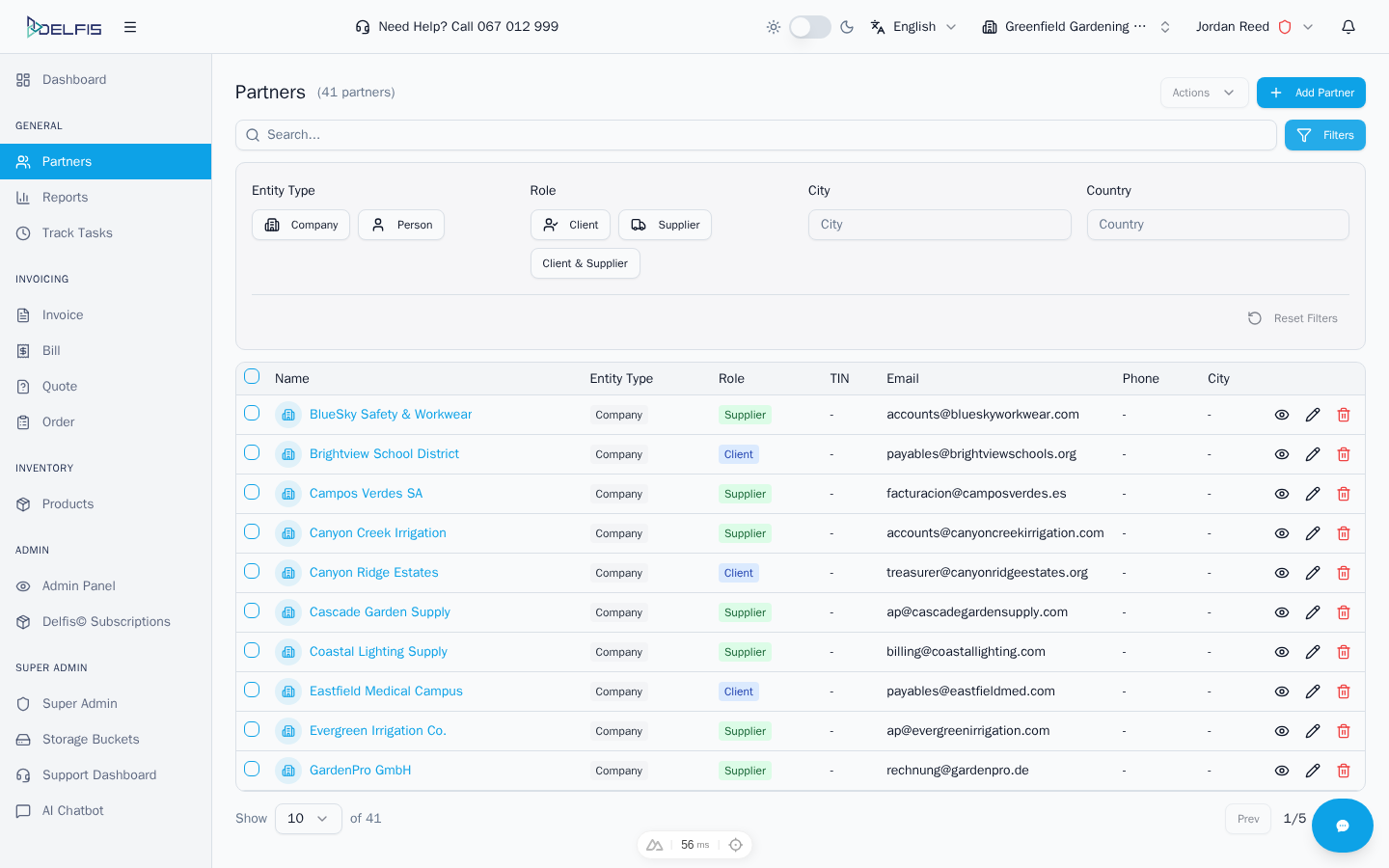
Click the Filters button to expand advanced filtering options.
Available Filters
Entity Type
Filter by partner type:
- Company - Business entities
- Person - Individual partners
Click a button to apply the filter. Click again to remove it.
Role
Filter by business relationship:
- Client - Partners you sell to
- Supplier - Partners you purchase from
- Both - Partners serving both roles
City
Type a city name to filter by location. Partial matches are supported.
Country
Type a country name to filter by country. Partial matches are supported.
Active Filters
When filters are active:
- The Filters button shows the number of active filters
- A Reset button appears to clear all filters
- The results count updates to show filtered results
Pagination
Control how many partners appear per page:
- Use the dropdown to select: 10, 25, 50, or 100 per page
- Navigate pages using Previous and Next buttons
- The current page position shows as "Page X of Y"
Bulk Actions
Select multiple partners to perform bulk operations:
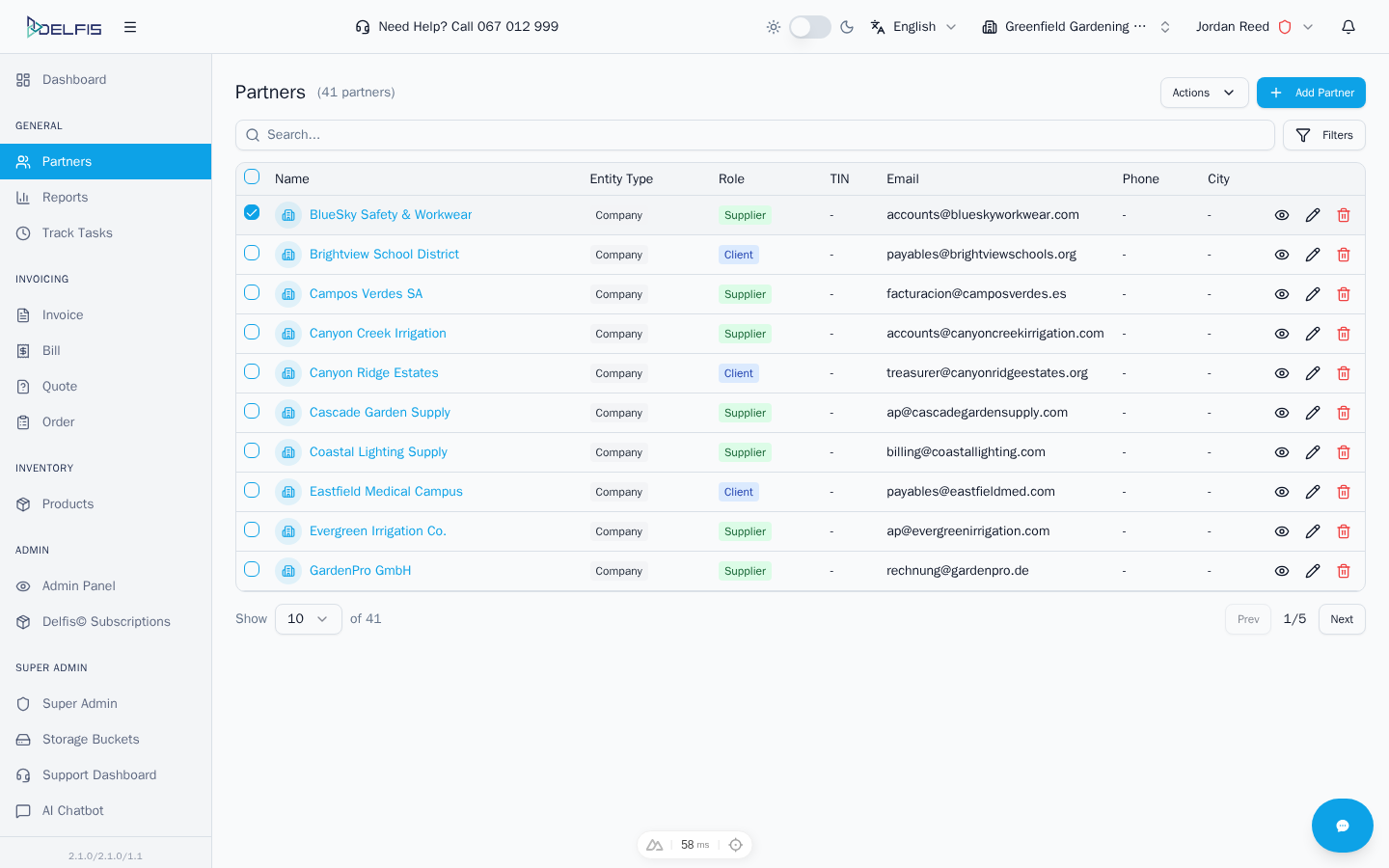
- Check the boxes next to partners you want to select
- Use the header checkbox to select all visible partners
- Click the Actions dropdown
- Choose Delete Selected to remove multiple partners
Warning: Deleting partners cannot be undone. Make sure you no longer need the partner records before deleting.
Row Actions
Each partner row has quick action buttons:
| Action | Description |
|---|---|
| View (eye icon) | Open partner details page |
| Edit (pencil icon) | Open partner for editing |
| Delete (trash icon) | Delete the partner |
You can also click anywhere on a row to open the partner details.
Empty States
No Partners
If you haven't created any partners yet, you'll see a welcome message with a button to add your first partner.
No Results
If your search or filters return no matches, you'll see suggestions to:
- Adjust your search terms
- Reset your filters
Tips for Managing Partners
- Use consistent naming - Establish a naming convention for easy searching
- Complete all fields - More data means easier document creation later
- Assign correct roles - Ensure partners appear in the right document types
- Regular cleanup - Remove inactive partners to keep your list manageable
Next Steps
- Creating Partners - Add new clients and suppliers
- Partner Details - View and edit partner information